SEPA MCP server: create SEPA XML files from Claude or ChatGPT
2026-11-27
It’s the last working day of the month. The list of membership fees is in a spreadsheet, two new members sent their IBANs by email, and the direct debit batch still has to reach the bank before the cut-off. You already have Claude or ChatGPT open in another tab. Why can’t you just ask it to prepare the file?
Now you can. The SEPA MCP server from GenerateSEPA connects your AI assistant to your account: you paste one URL into Claude, ChatGPT or Cursor, log in, click Allow access, and from then on you can ask in plain English for a credit transfer or direct debit batch. The assistant gathers the data from the conversation or from the file you attach, generates a valid SEPA XML file with your account, and the file stays in your conversion history, ready to upload to your bank.
This post explains what the server does, how to connect each assistant step by step, what you can ask it, what works without an account and what it costs.
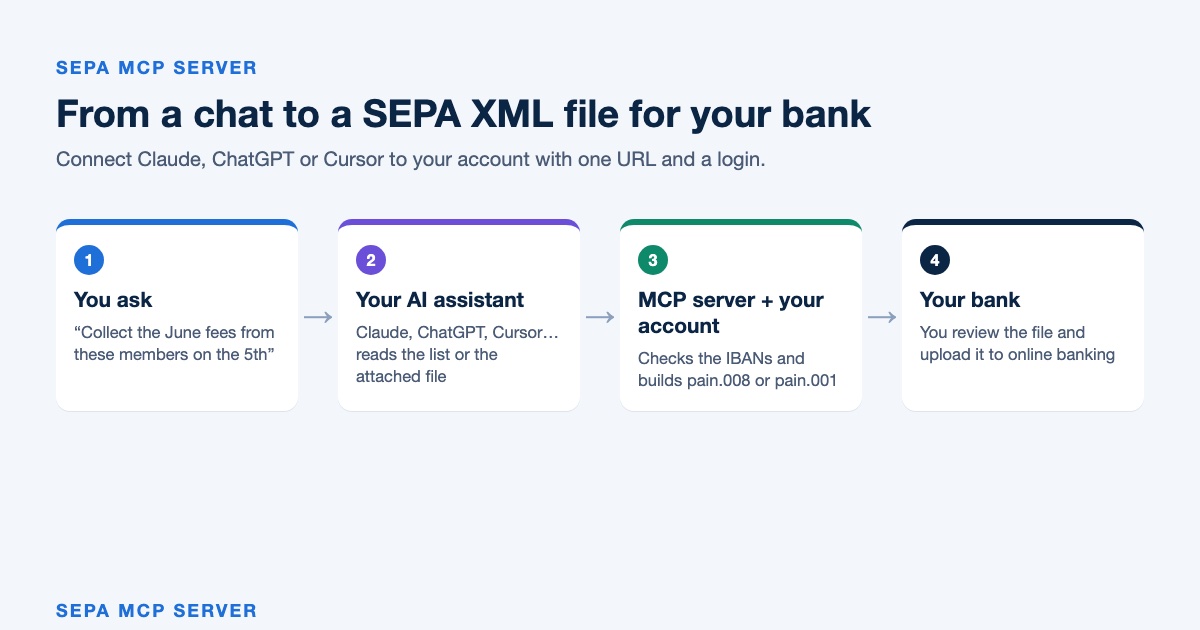
What the SEPA MCP server is and what changes
MCP stands for Model Context Protocol, an open standard that lets AI assistants use external tools in a controlled way. The official MCP documentation describes it as a common port between assistants and services: the assistant discovers which tools a server offers, what data each one needs, and calls them when your request requires it.
Our MCP server exposes the same engine that converts your Excel files and powers the SEPA XML API, but as tools an assistant understands. In practice that means:
-
You describe the result, not the format. “Collect the March fees from these 42 members on the 5th” is enough. The assistant builds the batch with the fields
pain.008.001.02requires: debtor name, IBAN, amount, collection date, mandate reference and signature date. - The XML is generated by our validator, not invented by the AI. A language model can write something that looks like SEPA XML and still be rejected by the bank. Here the assistant only passes the data; the file comes out of the same code that generates your batches on the web, with the IBANs checked before it’s created.
- It works with what you already have. If the data is in a spreadsheet, an email or a PDF invoice, the assistant reads it, and you don’t have to map columns or copy and paste between systems.
Key point: the assistant prepares and checks; you decide. The server never sends anything to your bank. You download the file, review it and upload it to your online banking as usual.
How to connect your assistant to the SEPA MCP server
There are two ways: logging in (recommended, nothing to copy) or with your API key, for tools that don’t support login.
Option 1: log in from the assistant (OAuth)
The URL to paste is the same for every assistant:
https://www.generatesepa.com/mcp/account
You’ll also find it, with a copy button, on the API + MCP page of your account.
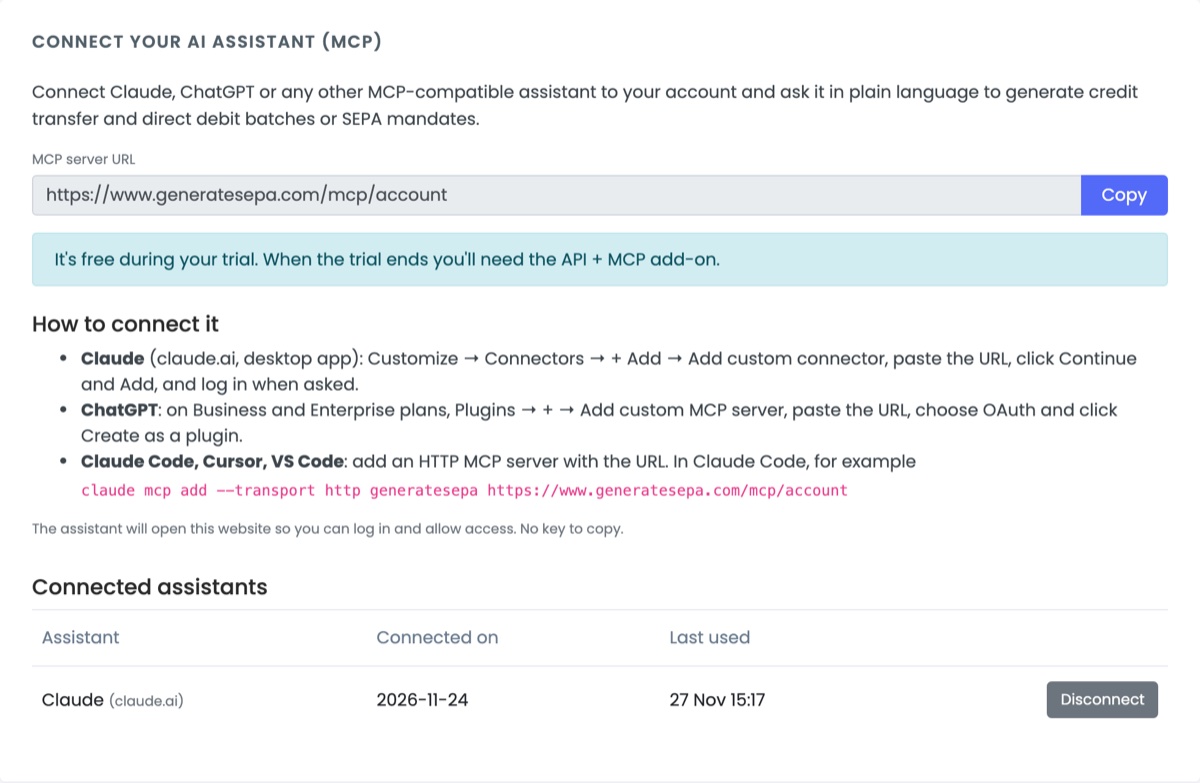
In Claude (claude.ai, desktop app and, once added, mobile apps). According to Claude’s help on custom connectors, they’re available on every plan, including Free with one custom connector:
- Go to Customize → Connectors, click + Add and then Add custom connector.
- Give it a name (for example, GenerateSEPA), paste the URL and click Continue twice.
- Click Add. Claude opens our login page: log in with your usual email and password.
- On the next screen, check the account and click Allow access.
- In a chat, open + → Connectors and turn the connector on.
On Team and Enterprise plans an owner adds the connector once in the organisation settings, and each person connects with their own login.
In ChatGPT. OpenAI’s help places custom MCP servers in ChatGPT Business and Enterprise, on the web:
- Go to Plugins, click the plus button and choose Add custom MCP server.
- Enter a name and paste the URL under Connection.
- Choose OAuth as the authentication, tick I understand and want to continue and select Create as a plugin.
- When ChatGPT asks you to sign in, log in with your account and click Allow access.
In Claude Code, Cursor or VS Code. Add an HTTP MCP server with the URL. In Claude Code, for example:
claude mcp add --transport http generatesepa https://www.generatesepa.com/mcp/account
The first time you use it, the tool opens your browser to log in.
What the Allow access screen shows
Before connecting, you see which assistant is asking for access, to which account and email, and what it will be able to do: see your account details, profiles and conversions, generate SEPA XML files and work with mandates. It also tells you which website you’ll return to after answering, so no third party can pass itself off as Claude or ChatGPT.
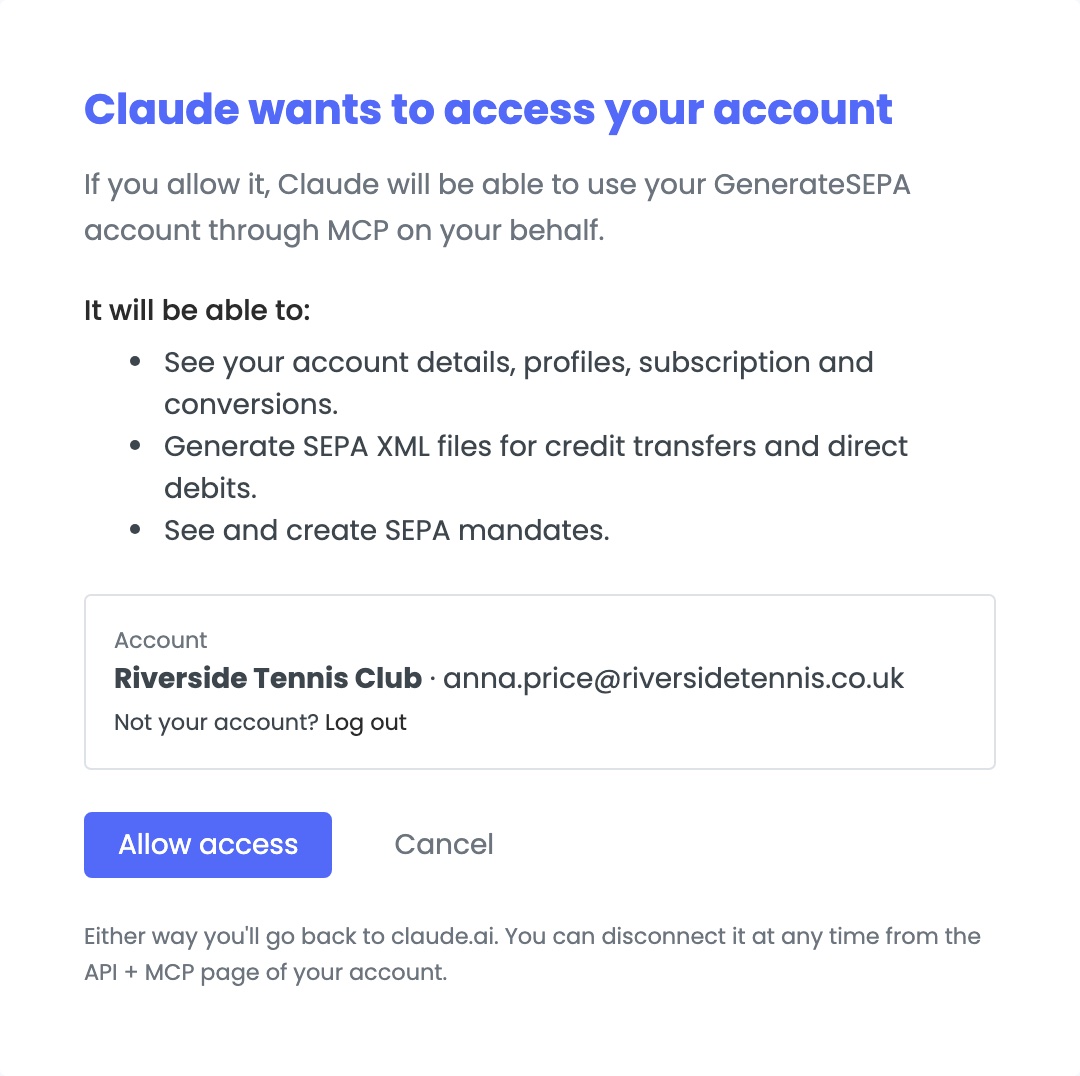
Rule of thumb: connect each assistant with the login of the person who’ll use it. Every connection appears on the API + MCP page, and you can disconnect it there with one click.
Option 2: with your API key
Some tools don’t support login. For them, use https://www.generatesepa.com/mcp and send your API key (from the same API + MCP page) in the Authorization: Bearer <API key> header. It gives the same access as login, so treat it like a password and regenerate it if it’s ever exposed.
What you can ask: use cases
You don’t need special commands. These are messages that work as written, with the data in the conversation or in an attached file.
| You ask | The assistant does | You get |
|---|---|---|
| “Prepare the June fees direct debit for these members, collection on the 5th” + attached Excel | Reads the sheet, takes your creditor details from your profile and generates the batch |
pain.008 XML (CORE) |
| “Pay these supplier invoices on Friday from the main account” + PDFs | Extracts beneficiary, IBAN and amount from each invoice and groups them by date |
pain.001 XML |
| “Check these 30 IBANs before I send the batch” | Validates each one and returns bank and BIC | List of valid and invalid IBANs |
| “Why does my bank reject this file?” + XML | Validates it against the schema and the rules banks apply | The list of errors found |
| “Create the mandate for this new member” | Fills in the mandate with your creditor details | Mandate PDF, ready to sign (with the mandates add-on) |
| “What did I send last month?” | Lists your most recent files | Format, number of operations and total amount |
Monthly direct debits without retyping
This is where the time goes. The assistant can read last month’s sheet, apply the new prices, add the new members and leave out those who left, then generate the batch. If a row is missing the mandate reference or an IBAN is wrong, no file is created: the assistant gets the list of errors and can ask you to fix them. Collections on different dates go in separate batches automatically. If you work from Excel, the guide to creating a direct debit file from Excel explains which columns you need.
Supplier payments and payroll
For credit transfers, the assistant needs the payer (it takes it from your profile), and the name, IBAN, amount and execution date of each payment. You can paste the list, attach the invoices or ask it to reuse last week’s payments. The reference shown to the beneficiary is written in the conversation: “put the invoice number in the remittance information”.
Checking before sending
Many rejections come from a mistyped IBAN or a file that doesn’t follow the schema. Asking “check this before I upload it” costs nothing and avoids an R-transaction days later. The checks the assistant uses are the same as those of the free IBAN validator.
Accountants and multiple companies
If you manage several companies with company profiles in a single account, tell the assistant which one to use: “Collect from Bakery Ltd’s customers, not from the workshop”. It lists your profiles and uses the creditor identifier and IBAN of the right one.
Free utilities without an account
Part of the server works without logging in, at https://www.generatesepa.com/mcp. Any assistant connected to that URL can:
| Tool | What it does |
|---|---|
| Validate IBAN | Checks the format and check digits, and returns the bank and BIC |
| Creditor identifier | Validates a SEPA creditor identifier, or generates it from your national identifier |
| Validate direct debit XML | Checks a pain.008.001.02 file and lists its errors |
| GiroCode | Creates an EPC QR code so a customer can pay you by transfer from their banking app |
| Test IBAN | Generates random valid IBANs for testing |
| Help centre | Searches our help articles and returns the link |
Generating batches and mandates and seeing your files requires connecting your account.
Advantages and limits
Advantages
- Less retyping. The data goes from the email or spreadsheet to the file without passing through your hands, and that’s where most errors start.
- Validated files. The XML comes from the same engine as the web and the API, with IBANs checked. You can also ask for a validation before uploading it.
-
No technical knowledge needed. You don’t need to know what
pain.001is or how to fill in the creditor identifier. If something is missing, the assistant asks. - Your access stays under control. Logging in doesn’t share your password with the assistant: it receives a permission that expires and renews itself, and that you can revoke at any time from your account.
- Everything is recorded. Every file generated from the assistant appears in your conversion history, just like those from the web.
Limits
- The server doesn’t send anything to the bank. You upload the file yourself, as you do now.
- The assistant can misread a scanned document. Review the summary it shows you (number of operations and total) before uploading the file. If the total doesn’t match your list, ask it to show you the operations.
- It generates SEPA formats only. Credit transfers and direct debits in euros, CORE or B2B schemes. It doesn’t generate non-SEPA formats.
- Your assistant’s plan matters. Each assistant decides on which plans it allows custom connectors (see the steps above).
Price and action plan
Connecting your account is free during the 7-day trial, with everything included. After that, using your account from an assistant requires the API + MCP add-on, at €10 a month plus VAT on top of the base plan (see pricing). The same add-on includes the REST API. The free utilities stay free.
| Step | What to do | When |
|---|---|---|
| 1. Account | Start the free trial and create your company profile (name, IBAN and creditor identifier) | Day 1 |
| 2. Connect | Copy the URL from the API + MCP page and add it to Claude, ChatGPT or your tool | 2 minutes |
| 3. Allow | Log in from the assistant and click Allow access | First use |
| 4. Test | Ask for a small batch with your own data and compare the total | Before the first real batch |
| 5. Upload | Download the XML and upload it to your online banking | Every batch |
| 6. Review | Check connected assistants and disconnect the ones you no longer use | Every few months |
If you already prepare your batches with an assistant at your side, connect it to your account and let it write the XML: start the 7-day free trial of GenerateSEPA and add the connector from the API + MCP page.
Frequently Asked Questions
- Is it safe to connect my GenerateSEPA account to ChatGPT or Claude?
- Yes. You log in on our website, not in the assistant, so it never sees your password. It receives a permission that expires and renews itself, and you can disconnect it at any time from the API + MCP page of your account. The server never sends anything to your bank: you upload the file yourself.
- How much does the SEPA MCP server cost?
- Connecting your account is free during the 7-day trial. After that it requires the API + MCP add-on, at 10 euros a month plus VAT on top of the base plan, which also includes the REST API. The free utilities, such as IBAN validation, work without an account.
- Which AI assistants can I connect?
- Any assistant that supports remote MCP servers over HTTP: Claude (web, desktop and mobile), ChatGPT on the plans that allow custom MCP servers, Claude Code, Cursor and VS Code. Those that support login connect with the URL alone; the rest can use your API key.
- Does the AI assistant send the batch to my bank?
- No. The assistant generates the SEPA XML file with your account and the file stays in your conversion history. You download it, check it and upload it to your online banking, exactly as with a file created on the web.


